
Flow Nodes have two 2D visual types represented by pixels; video and graphic (an image).
Playing
To play a video, add the new Player node.

This node takes video in and returns graphic out.
The new node is available in Flow Nodes 4.
Sampling
To sample a video frame into a graphic, use the Sample node.

Once you got the video frame, you can apply any graphic effect to it.
Editing
To edit every frame in a video, a 

Seeking
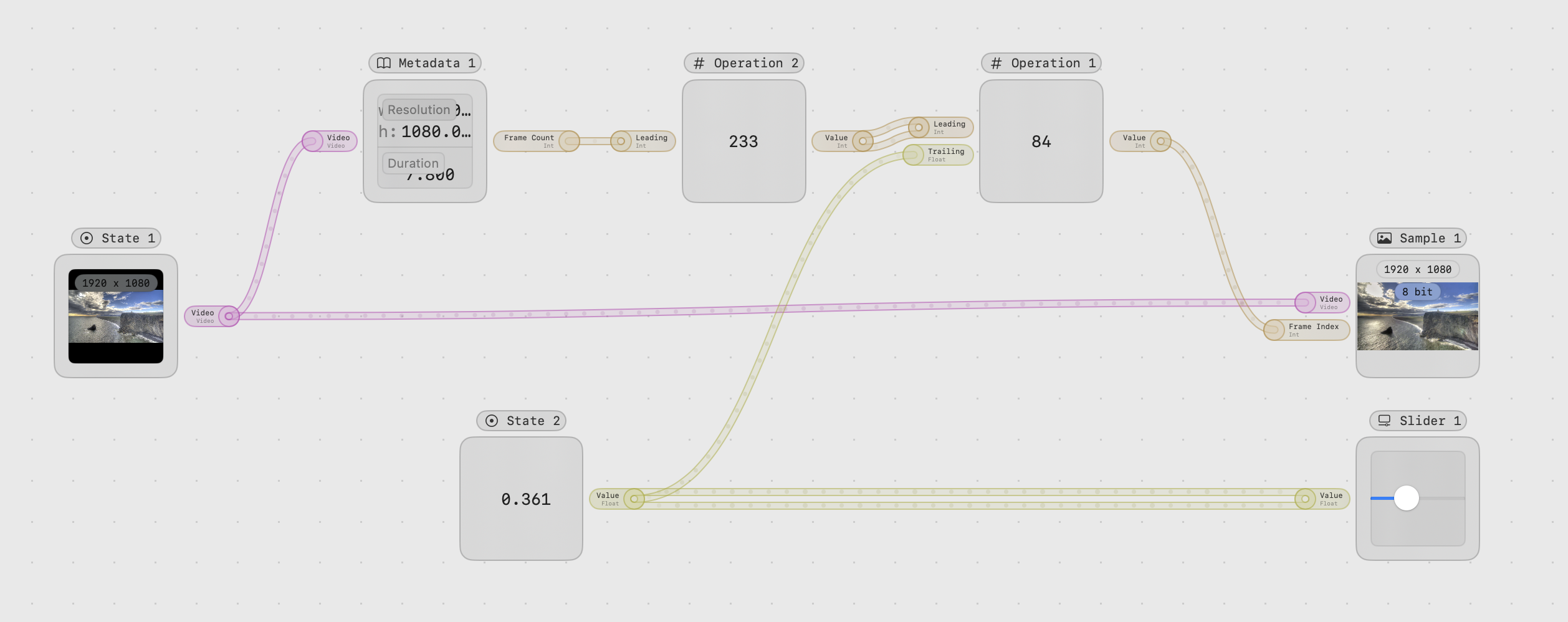
If you want to seek the video with a slider, see the demo in the app or follow this guide:
Add a video

Alternatively long press in iOS or right click on macOS, and import the video from the context menu or import it from the node creation panel.
Add a video

Wire the video outlet on the video state node to the metadata node.
The frame count will be needed to calculate the frame index.
Add a

This node takes a binding to a float value as it’s input, a binding (a double wire).
To get the value we will need to wire upstream (left) to a state.
Add a float

Wire it to the slider node.
Add two math

0.0and1.0to the frame index.Wire the frame count from the metadata node to the first operation node.
Set the first operation node to subtract
1from the frame count. As the last frame index (zero based) is frame count minus one.Next wire the first operation node to the leading inlet of the second operation node and the float state to the trailing inlet. And set the node to multiply.
Finally add a

Now you should be able to seek the video with the slider.


